Google OAuth Verification: A Step-by-Step Guide for Add-on Developers
How to pass Google's OAuth verification process for your Workspace add-on—branding requirements, privacy policy, terms of service, scopes justification, and the demo video.

If you've built a Google Workspace add-on and you're ready to publish it, there's one step that trips up almost every developer: OAuth verification.
Here is the official guide from Google. In the following lines I will consolidate what seems to be the most important in my opinion, some things could be identicall from Google and others tips from my experience.
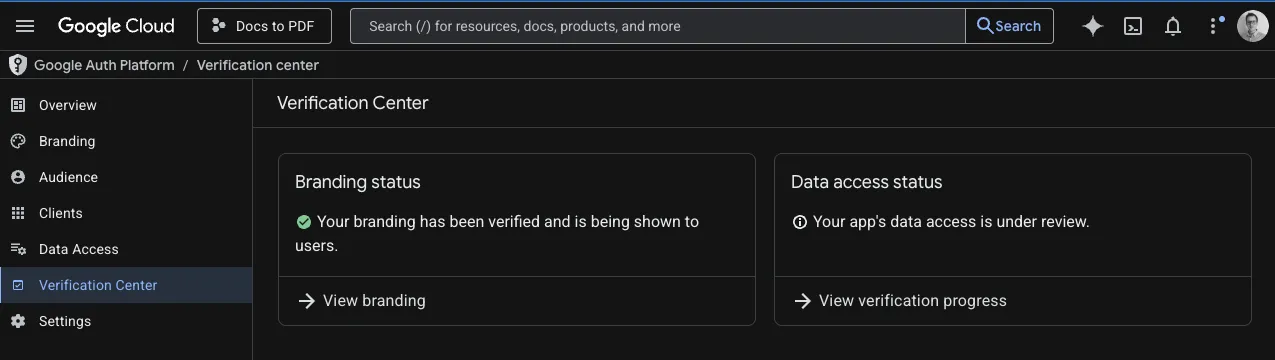
Google requires this process to protect users and ensure your app handles their data responsibly. It's not optional—if your add-on requests any sensitive or restricted OAuth scopes, you need to go through it.
I've been through this process multiple times, and while it can feel bureaucratic, it becomes straightforward once you know exactly what Google expects. This guide walks you through every requirement so you can get verified on your first submission.
What Is OAuth Verification?
When your add-on requests access to Google user data (reading documents, displaying UI inside Google apps, making external API calls), Google wants to verify that you're doing it responsibly.
The verification process reviews three areas:
- Branding — Your app identity and public-facing pages
- Data access — Your requested OAuth scopes and justification for each
- Compliance — Your privacy policy and terms of service
Fail any of these and your submission gets rejected with feedback. Let's make sure that doesn't happen.
Step 1: Branding Requirements
This is where you set up your app's identity in the Google Cloud Console under APIs & Services > OAuth consent screen.
App Name
Your app name must match your Google Workspace Marketplace listing exactly. This is a common rejection reason—even small differences will get flagged.
Important: If your app name includes any Google trademarks like Docs, Sheets, Slides, or Drive, you must use the trademark symbol. For example: Docs™ to PDF not Docs to PDF. Google is strict about this. Miss the ™ and your submission will be rejected.
App Home Page
Your homepage URL must be publicly accessible and must mention your add-on by name. Google reviewers will visit this page and check. A generic landing page without any reference to your add-on won't pass.
App Logo
Upload a square image, exactly 120×120 pixels. Keep it clean, professional, and recognizable at small sizes. This logo appears in the consent screen users see when installing your add-on.
Authorized Domains
Make sure every domain you reference (homepage, privacy policy, terms of service) is verified and added to your authorized domains list. Mismatched domains are another frequent rejection cause.
Step 2: Privacy Policy
This is the section Google reviewers scrutinize the most. Your privacy policy must be hosted at a public URL—no login required, no paywalls.
Here's exactly what it must cover:
What Data You Collect
Be specific. Vague language like "we may collect information" will get you rejected. List exactly what you access:
- Google account email and profile information
- Google Docs/Sheets/Slides content (if applicable)
- File metadata (names, IDs, timestamps)
- Usage analytics and interaction data
- Payment information (if using Stripe or another processor)
Why You Collect It
Explain the purpose behind each type of data collection:
- To provide the core add-on functionality
- To process user requests (e.g., convert documents, generate PDFs)
- To improve performance and reliability
- For billing and subscription management
Google cross-references this section with your declared OAuth scopes. If you request documents.readonly but your privacy policy doesn't mention accessing document content, that's a red flag.
How You Use Google Data
This is critical, especially for sensitive or restricted scopes. You must explicitly state:
- You only use Google data to provide the app's stated functionality
- You do not sell Google user data
- You do not use Google data for advertising or ad targeting
- You do not transfer data to third parties except as necessary to provide the service (e.g., hosting infrastructure)
If you're requesting restricted scopes, this section needs to be very clear and unambiguous.
Data Storage and Retention
Google reviewers specifically look for this. Explain:
- Whether you store document content (and if so, for how long)
- Your data retention periods
- How users can request deletion of their data
- What happens to user data when they uninstall the add-on
Data Sharing and Third Parties
Disclose every third party that handles user data:
- Hosting provider (e.g., AWS, Vercel, Google Cloud)
- Payment processor (e.g., Stripe)
- Analytics provider (e.g., Google Analytics)
- Email service provider (if applicable)
Security Measures
A brief description of how you protect user data:
- Encryption in transit (HTTPS/TLS)
- Access control and authentication
- Limited internal access to user data
- Secure data processing practices
Contact Information
Must include:
- Your company or product name
- A contact email address
- Country of operation (recommended)
Step 3: Terms of Service
Your terms of service must also be publicly accessible. While less scrutinized than the privacy policy, incomplete terms can still cause rejections.
Include these sections:
Service Description
A clear explanation of what your add-on does. Keep it straightforward—one or two paragraphs covering the core functionality.
Acceptable Use
Define what users can and cannot do with your service. Standard clauses about not misusing the service, not attempting to reverse-engineer it, and not using it for illegal purposes.
Limitation of Liability
Standard SaaS protection language. Your service is provided "as is," and you limit liability for damages arising from use of the service.
Payment Terms
If your add-on has paid plans, cover:
- Subscription billing cycles
- Refund policy
- What happens when payment fails
- Price change notification process
Termination
You reserve the right to suspend or terminate accounts for policy violations or abuse. Users can also terminate their use at any time by uninstalling the add-on.
Governing Law
State the country and/or jurisdiction whose laws govern the agreement.
TIP: Give step 2 & 3 content to any LLM and your respective tos/privacy pages and ask the LLM to ensure compliance!
Step 4: Data Access and Scopes
This is where you justify every OAuth scope your add-on requests. Go to your Google Cloud project and verify that the scopes listed match exactly what your add-on actually uses.
For each sensitive or restricted scope, you'll need to provide two things: a written justification and a demo video.
TIP: Avoid at ALL COST to ship with restricted scopes. Restricted scopes require CASA assesment which will not only slow you down but also they are paid yearly. Ensure that you undestand the APIs and scopes deeply before commit to a restricted scope. I have seen use cases where extra -unnecessary- restricted scopes were being used, creating a security bad practice and a lost of money.
Writing Scope Justifications
Each justification should answer three questions: what the scope does, why your add-on needs it, and what safeguards you have in place.
Here are the examples I wrote for Docs to PDF addon:
documents.readonly
Required to read the content of the currently opened Google Docs™ document in order to convert it to PDF, merge documents, or apply password protection as requested by the user. The app does not modify document content and does not retain document data after processing.
script.container.ui
Required to display the add-on's HTML modal dialog and custom menu inside Google Docs™ using
DocumentApp.getUi()andshowModalDialog(). This scope is used only to render the user interface within the Google Docs™ container.
script.external_request
Required to securely communicate with external backend services to process PDF generation, merging, password protection, and billing verification if applicable. Only the minimum necessary data is transmitted, and data is not used for advertising or resale.
Notice the pattern: what you use it for, how limited the usage is, and what you explicitly don't do with the data.
Recording the Demo Video
Google requires a YouTube video demonstrating how your add-on uses the requested scopes. This is where many developers stumble—either by making the video too short or too vague.
Your video must show:
- The OAuth grant process — Record yourself installing the add-on and going through the consent screen where users authorize access
- The app details — Clearly show your app name, OAuth client ID, and project details
- Each scope in action — Walk through every sensitive/restricted scope and demonstrate the exact feature that requires it
- Narration — Explain what's happening as you demonstrate. Don't just click through silently
Tips for a good demo video:
- Keep it between 3-7 minutes. Long enough to be thorough, short enough to respect the reviewer's time
- Use screen recording software with clear audio (I use OBS or Loom)
- Show the Google Cloud Console with your OAuth configuration at the start
- For each scope, demonstrate the user flow that triggers it
- Speak clearly and explain the connection between the scope and the functionality
- Upload as unlisted on YouTube and provide the link in your submission
Example video used for Docs to PDF addon:
Common Rejection Reasons (and How to Avoid Them)
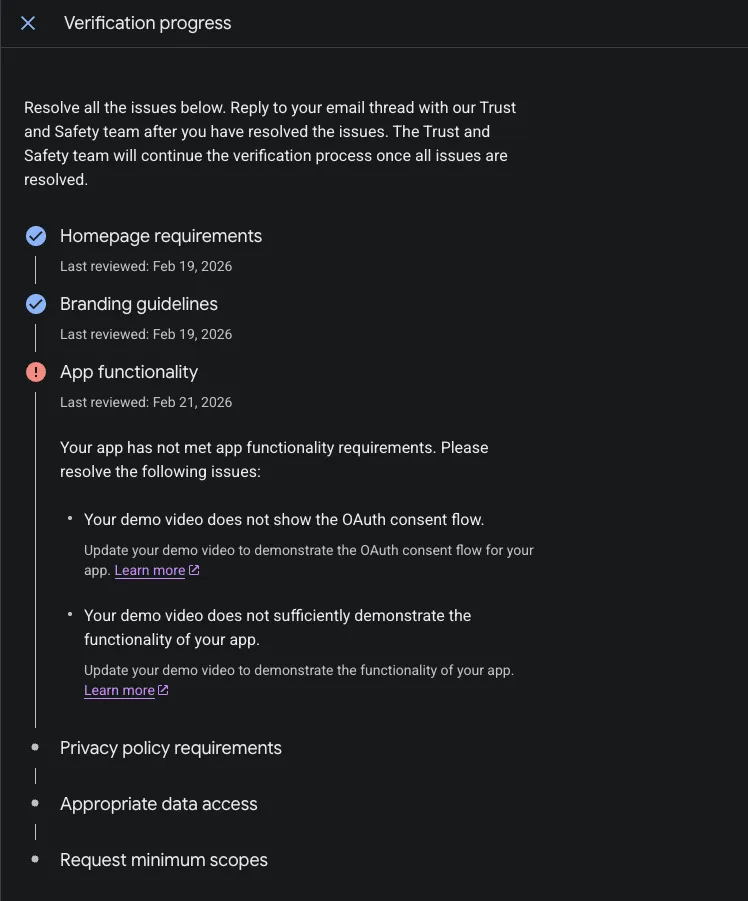
After going through this process multiple times, here are the most frequent issues I've seen:
App name mismatch. Your OAuth consent screen name must match your Marketplace listing exactly. Double-check this before submitting.
Missing trademark symbols. If you reference Google products in your app name, use the ™ symbol every time. Docs™, Sheets™, Slides™, Drive™.
Vague privacy policy. Generic templates from the internet usually don't pass. Customize your policy to mention your specific app, the specific data you access, and the specific Google scopes you use.
Unused scopes. Don't request scopes you're not actively using. Google reviewers test this. If you request spreadsheets.readonly but your add-on only works with Docs, you'll get rejected.
Poor demo video. A 30-second screen recording with no audio won't cut it. Take the time to properly demonstrate and explain each scope.
Missing contact information. Both your privacy policy and terms of service need valid contact details.
The Review Timeline
Once you submit, expect the review to take anywhere from a few days to several weeks, depending on the scopes you've requested:
- Non-sensitive scopes — Usually processed within a few days
- Sensitive scopes — Typically 1-2 weeks
- Restricted scopes — Can take several weeks and may require additional documentation or a security assessment
If you get rejected, don't panic. Google provides specific feedback explaining what needs to change. Fix the issues, resubmit, and the second review is usually faster.
A Checklist Before You Submit
Run through this before hitting the submit button:
- App name matches Marketplace listing exactly
- Google trademarks include ™ symbol
- App logo is 120×120px, square, and professional
- Homepage is public and mentions the add-on
- Privacy policy is public, specific, and covers all seven required sections
- Terms of service is public and complete
- All OAuth scopes match what the app actually uses
- Written justification provided for each sensitive/restricted scope
- Demo video uploaded to YouTube showing every scope in action
- Demo video includes narration and shows app details (name, client ID)
- Contact email is valid and monitored
- Authorized domains are verified
Wrapping Up
OAuth verification is a gatekeeping step, but it exists for good reason—it protects users and builds trust in the ecosystem. The developers who get through it smoothly are the ones who treat it as a checklist, not a guessing game.
Prepare your privacy policy and terms of service early. Write your scope justifications before you submit. Record a thorough demo video. If you do these things upfront, you'll likely pass on the first attempt.
If you're building your add-on with ShipAddons, the boilerplate already handles the OAuth flow implementation. But the verification process—crafting your policies and justifying your scopes—is something only you can do, because only you know exactly what your add-on does with user data.
For more on the full journey of building and shipping add-ons, check out How I Market Google Workspace Add-ons and Finding Your Google Workspace Add-on Niche.